


Update Guide Contents
Why Antigravity Says Your Current Version Is Out of Date
An out-of-date warning means the installed desktop client no longer matches the version expected by the service or the current support guidance. Start with the client version and installation path rather than deleting project folders.
The safest update is an in-place install from a verified platform file or the official Google download page. Your projects normally live outside the application directory, but back up important work before changing software.
If the warning returns after an update, check for a stale shortcut, a second installation, a running background process, or a package-manager source that was not refreshed.
Best Update Method by Platform
Choose the update path that matches the original installation. Keep one installation method per machine and verify the About dialog after the update.
| Platform | Best update method | Use this when |
|---|---|---|
| Windows | Choose the Windows installer currently listed on Google's official page. | The new About version is visible and the shortcut opens the same install. |
| macOS | Select the Apple Silicon or Intel option shown on the official page, then replace the app in Applications. | The Mac architecture matches the downloaded disk image. |
| Linux | Reuse the APT/DNF repository or archive route used for the original installation. | The package source or archive is verified before running it. |
| Rollback | Use an archived version only for a documented compatibility test. | The test copy is separated from the daily installation. |
How to Update Antigravity IDE Step by Step
Check the installed Antigravity version
Open the About dialog and record the version and install path. On Linux, also run uname -m so you can choose x64 or ARM64 correctly.
Install the matching verified package
Close Antigravity, choose the matching installer currently listed on Google's official page, and install over the existing copy. On Linux, keep the original repository or archive route.
Reopen and verify the update
Launch the new executable, check About again, reopen a real workspace, and test sign-in plus one AI feature. If the old version appears, inspect shortcuts and duplicate installations.
What to Do If the Warning Still Appears
If Antigravity still reports an outdated build after you install the version offered on Google's official page, close every process, launch the executable you installed, and open About again. A stale shortcut, duplicate installation, or unrefreshed package source can make an update appear unsuccessful.
Close every Antigravity process before reinstalling
On Windows, check Task Manager for Antigravity processes before running the installer again. On macOS, quit the app from the Dock and Activity Monitor if needed. On Linux, close all Antigravity windows and stop any background process before updating through apt or dnf.
Make sure your shortcut opens the new app
Some users keep an old desktop shortcut, pinned taskbar item, or custom launcher that points to a previous installation path. After updating, open Antigravity from the Start menu, Applications folder, or your system app launcher, then replace old shortcuts if the new app works.
Check whether two versions are installed
A machine can sometimes have a system-wide copy and a user-local copy. If the About dialog still shows an old version, remove the older duplicate only after confirming where your latest installation lives.
Sign in again after a major update
If the editor opens but AI features fail, sign out and sign in again. This helps refresh account state, model access, and cloud feature availability after a client update.
Update Antigravity on Windows
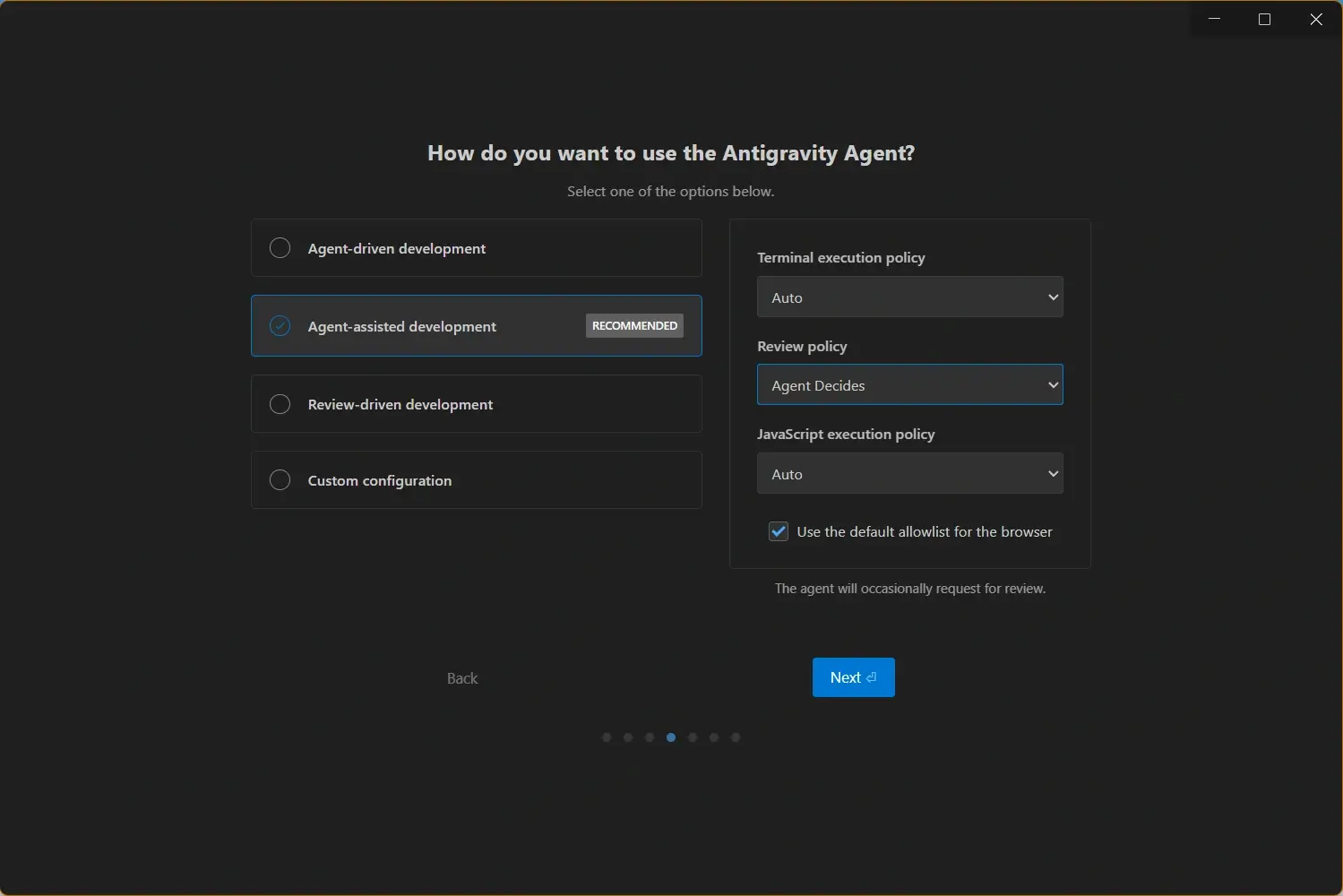
For Windows 10 and 11, check the Windows option on Google's official download page, close Antigravity, and run the installer provided there. Installing over the current copy keeps project folders separate from the application. If the warning remains, open the app from Start and inspect its install path before removing a duplicate.
Update Antigravity on macOS
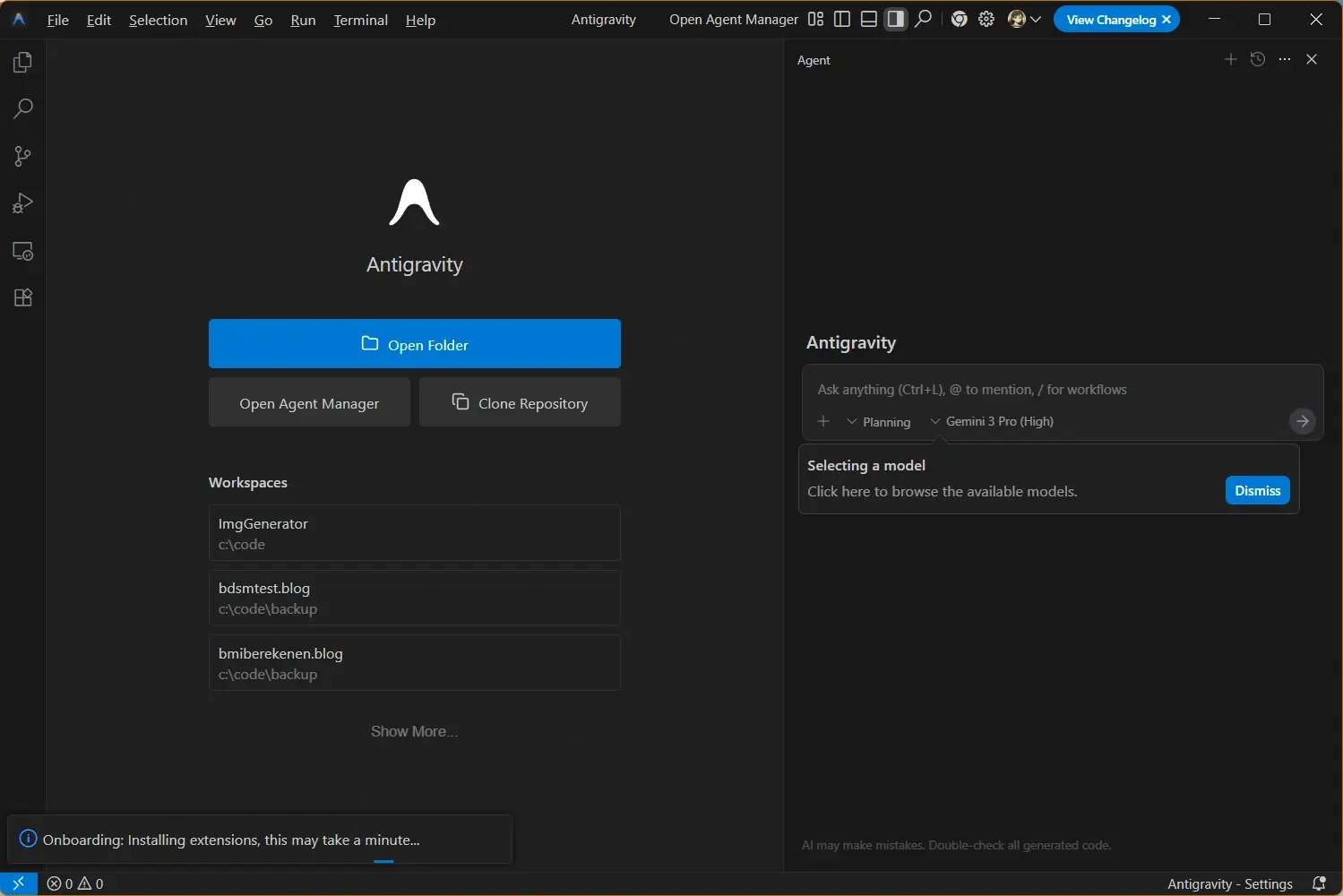
On macOS, choose the Apple Silicon or Intel option shown on Google's official page, quit Antigravity, open the downloaded disk image, and replace the app in Applications. Reopen it from Applications after installing so you do not start an older copy stored elsewhere.
Update Antigravity on Linux
On Debian/Ubuntu and Fedora/RHEL, refresh package metadata and update through the same APT/DNF repository used to install the app. If Antigravity came from an archive, use that route again instead of adding a package-manager copy. Check About after launch and avoid mixing install methods.

Should You Use an Old Antigravity Version?
Old Antigravity versions are useful only for short-term troubleshooting, compatibility checks, or reproducing a project-specific issue. They are not the best default choice because cloud features, agent behavior, security fixes, and model access can depend on the current client.
If you need an older build, document the compatibility reason, isolate the test copy from your daily workspace, and return to a build supported by the official guidance afterward. For an out-of-date warning, check Google's download page and your installed path; do not assume a numbered build is current.
Security note
Avoid searches such as Antigravity cracked version, Antigravity APK, or unlimited modified builds. They do not solve update compatibility problems and can put your code, credentials, and workspace files at risk.
Auto-update, Linux package updates, and version-policy choices
Automatic updates are a version-policy choice. If a team pins a release, record the approved version and update window; otherwise, check the official page when the client reports that it is out of date.
Ubuntu and Debian users should refresh package metadata before an upgrade. Fedora and RHEL users should refresh DNF metadata. If the original install used a tarball, replace that tarball rather than adding a second package-manager copy.
If the prompt remains, close every process, open About from the executable you actually launched, and compare that path with the shortcut target. Refresh the original Linux repository or replace the original archive, then check Google's official page for current package choices before removing a duplicate install.
Before installing, open antigravity.google/download directly or use the official link above. Confirm the operating system and CPU architecture shown for your device, then use only an installer published there; this guide does not host or verify installer files. Keep projects in their own folders, close Antigravity before replacing the app, and reopen the shortcut that points to the new install. On a managed computer, ask the administrator before changing update channels or package sources. If About still shows the prior build, compare the install path with the shortcut target instead of creating a second copy.
Useful Download and Version Links
Use these references to move from the update guide to the correct installer page and to verify the official download destination.
- Official Antigravity download page - Google's current desktop download destination
- Antigravity for Windows - Windows 10 and Windows 11 installer options
- Antigravity for macOS - Apple Silicon and Intel Mac download options
- Antigravity for Linux - APT and DNF update commands for Linux systems