

Changelog Guide Contents
Latest Antigravity Version Signals to Check First
Before updating Antigravity, confirm whether the release you are reading is a stable build, a platform-specific installer, or a past version kept for compatibility. A changelog entry normally answers three practical questions: what changed, who should install it, and what risk remains if you skip it for now.
This site keeps version-specific download pages for users who need a predictable installer, while the official Google Antigravity source remains the authority for live release availability. Use the table below as a reading framework rather than a substitute for the official release page.
| Version topic | Status to verify | Best use case | Next step |
|---|---|---|---|
| Latest stable build | Check the official download or changelog page before replacing your current install. | Most users who want current fixes, model access improvements, and installer updates. | Use the latest version page and choose the matching Windows, macOS, or Linux route. |
| Past stable version | Useful only when your team needs repeatable setup or a known behavior. | Rebuilding a workstation, testing a regression, or documenting older project environments. | Read the release notes and avoid downgrading unless the older build solves a specific issue. |
| Platform-specific installer | Architecture and OS support can change between releases. | Windows x64 vs ARM64, Apple Silicon vs Intel Mac, or Linux repository installs. | Check system requirements before downloading a file that only looks familiar. |
How to Read Antigravity Release Notes Without Missing Important Changes
Release notes are easy to skim, but the important details are often hidden in short phrases such as authentication fixes, terminal behavior, model routing, extension compatibility, or install script changes. If Antigravity is part of your daily development workflow, read each release note against your actual setup: operating system, project size, terminal shell, proxy rules, sign-in method, and the agents you rely on.
A good changelog review starts with the installed version in the About dialog, then checks the target version, and finally decides whether the release fixes a real issue. If the notes only mention features you do not use, updating immediately may be less urgent. If the notes mention security, sign-in, update reliability, or installer compatibility, updating is usually worth prioritizing.
- Installer changes - Look for changes to Windows ARM64, Apple Silicon, Linux package repositories, certificates, or install paths.
- Agent and model changes - Watch for updates that affect Agent Manager, model selection, quota behavior, browser previews, or terminal command execution.
- Bug fixes - Match fixes to symptoms you have seen, such as failed sign-in, update loops, blank previews, proxy errors, or slow startup.
- Known limitations - Known issues can be more important than new features because they tell you whether to wait before updating a production workstation.
How to Check Your Antigravity Version Before Updating
Open the About dialog
Launch Antigravity and check the version shown in the About dialog or update notification. Write it down before replacing the installer so you know what changed.
Compare the target release notes
Read the changelog for the version you plan to install. Look for fixes that affect your operating system, sign-in, model access, terminal shell, extensions, or agent workflows.
Update one machine first
Install the new build on one workstation, open a real project, run a small agent task, and confirm the terminal, browser preview, and sign-in still work before updating every machine.
Update, Wait, or Downgrade: A Practical Decision Rule
Update when the changelog fixes a problem you have, improves installer reliability, or includes compatibility updates for your platform. Wait when your current version is stable, the release mostly targets features you do not use, or your team is in the middle of a time-sensitive project and cannot absorb workflow changes.
Downgrading should be rare. It can make sense when a new release breaks launch, authentication, proxy access, extensions, or a workflow that your team depends on. Before downgrading, save your work, note the current version, export any important settings, and keep the installer that you intend to reinstall. Avoid mixing old installers with new extension or cache data unless you know the compatibility impact.
Safe rule
For personal machines, update after reading the notes and checking the installer. For team machines, test one workstation first, then roll out the same version once the project opens, agents run, and update prompts behave normally.
Windows release notes
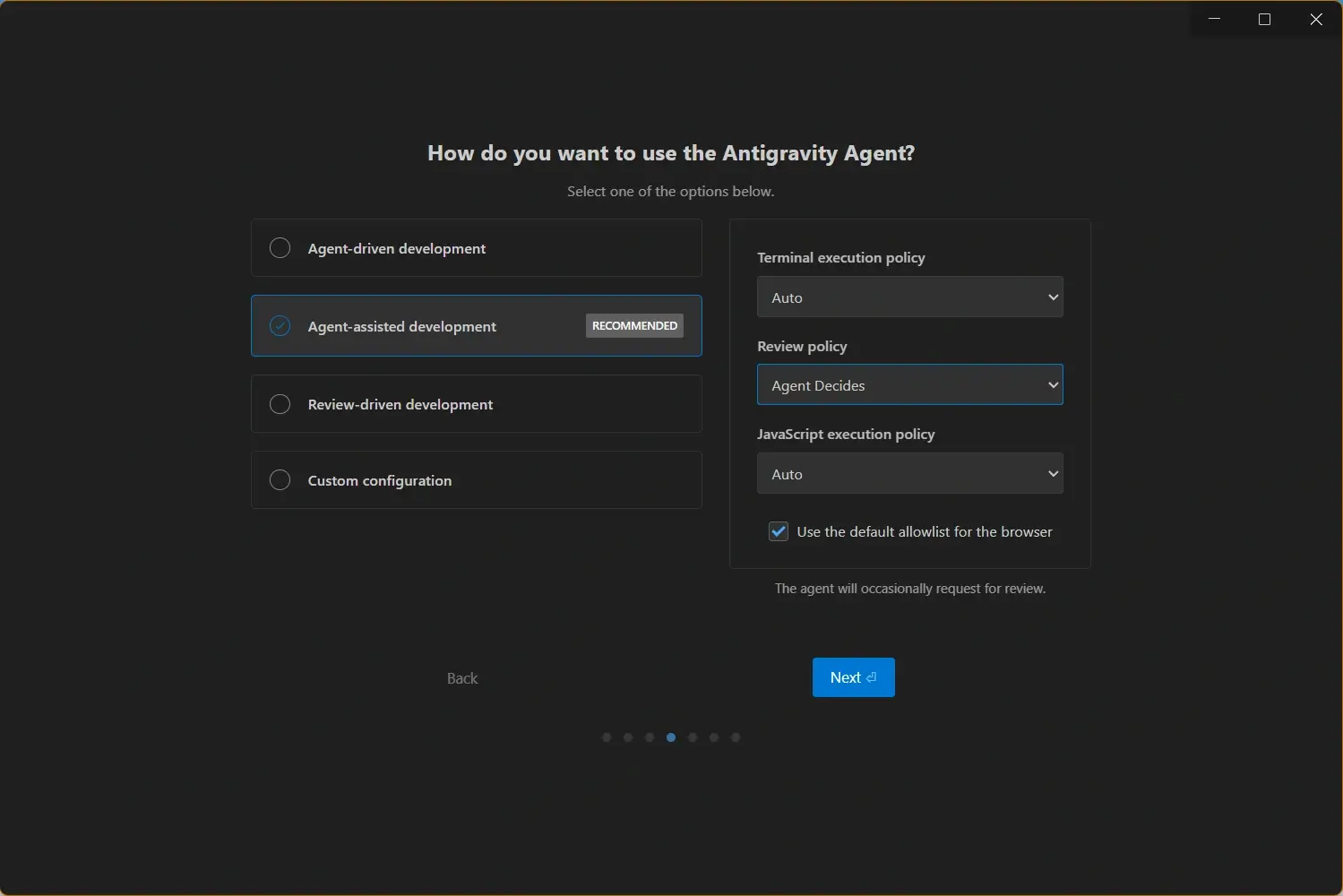
For Windows, check whether the changelog mentions x64, ARM64, SmartScreen, installer paths, PowerShell, WSL, or update prompts. If you use a corporate endpoint tool, verify that the new installer is allowed before removing the old version.
macOS release notes
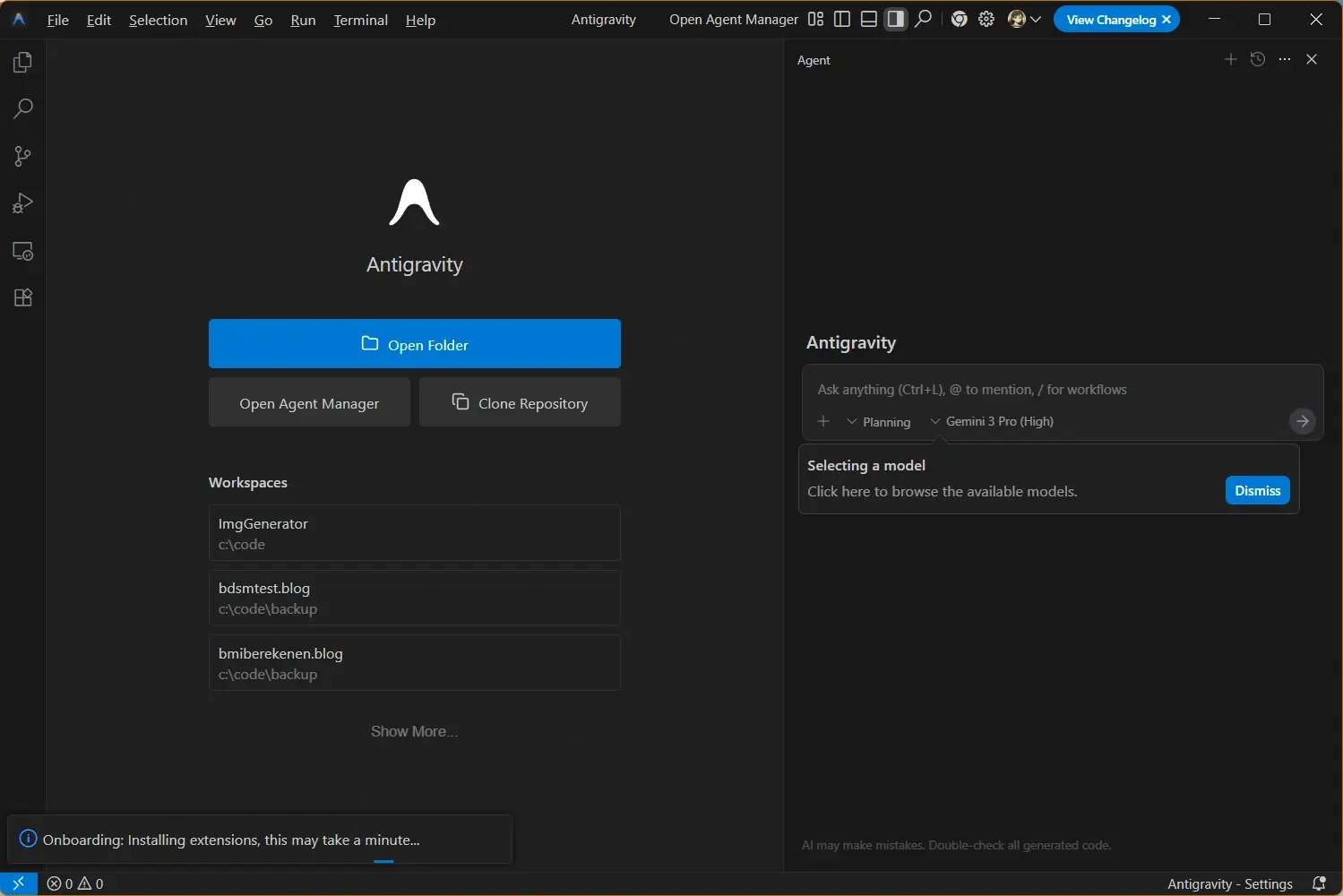
For macOS, confirm whether the release affects Apple Silicon, Intel Macs, login behavior, Gatekeeper prompts, or app replacement. Keep the old disk image until the new build opens your normal workspace correctly.
Linux release notes
For Linux, pay attention to repository commands, package dependencies, glibc compatibility, certificates, desktop integration, and shell behavior. Repository installs are easier to keep aligned with future changelog entries than manual archives.

Official Sources and Related Antigravity Guides
Use official sources for live version status, then use the related guides here to choose the right installer and fix version-specific problems.
- Official Antigravity changelog - Google's release-note source for current Antigravity IDE changes
- Official Antigravity download - the live Google download destination for current installers
- Latest Antigravity download - local latest-version guide with installer choices
- Antigravity update guide - step-by-step update checks after reading the changelog
- Antigravity troubleshooting guide - fix launch, sign-in, preview, and update-loop problems