
Antigravity Browser Guide Contents
What Antigravity Browser Control Is For
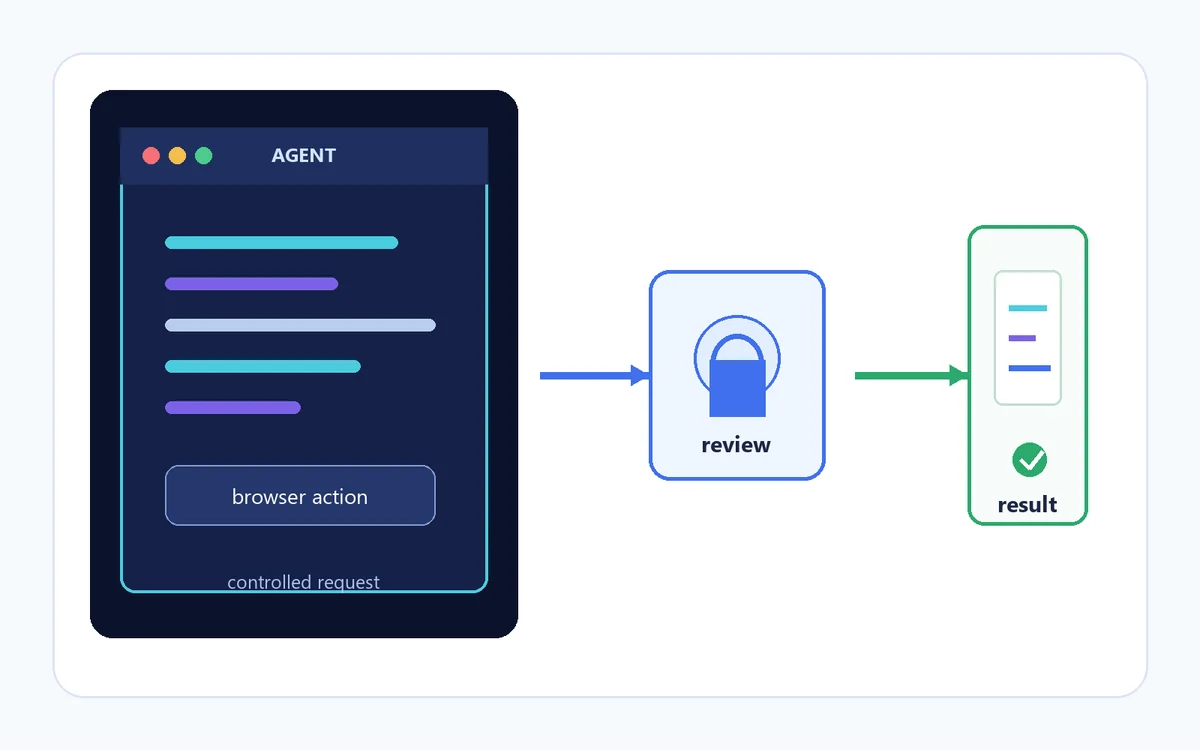
Antigravity browser control lets an agent workflow interact with web pages instead of only reading local files. The useful mental model is a supervised browser session: you describe a bounded outcome, the agent proposes or performs page actions, and you check whether the visible result actually matches the task. This is different from asking an agent to invent a result from memory. The page, form state, navigation, and final evidence remain part of the job.
Start with tasks that have a clear finish line, such as checking one page, collecting a small set of public fields, or reaching a form review screen without submitting it. Avoid broad instructions like browse the web and do everything. A narrow goal makes it easier to see when a link, account, or domain is outside scope and gives you a clean way to reproduce a stop, timeout, or wrong-session error.
| Task shape | Good browser use | First safety check |
|---|---|---|
| Public page check | Open one known URL and compare visible text or status. | Confirm the domain and expected page. |
| Small data collection | Read a short list of public fields with a stated limit. | Set row, page, and time limits; exclude private data. |
| Form preparation | Fill a draft or reach a review page without final submission. | Keep payment, deletion, publishing, and sending manual. |
| Regression check | Repeat a stable click path and capture the resulting state. | Use a test account or isolated profile when possible. |
Prepare an Antigravity Browser Task Before You Run It
Write the target URL, allowed actions, stop condition, and evidence you expect. Include what the agent must not touch. For example, ask it to open one public product page, read the title and price, stop if a login appears, and return the URL plus visible values. That instruction is safer and easier to audit than a request to shop, submit, or manage an account.
Keep the first run small. Close unrelated tabs, remove sensitive text from the prompt, and use a separate browser profile or test account when the workflow needs a session. Do not paste passwords, recovery codes, payment numbers, API keys, or private customer data into an agent instruction. You remain responsible for sign-in and for deciding whether the next action is safe.
Step-by-Step Antigravity Browser Workflow
Define one observable outcome
Name the site, page, fields, and stop condition. State whether the task may navigate, type, click, or only read.
Review the session and scope
Check the current profile, URL, account state, and requested permissions. Remove secrets and narrow the allowed domain.
Run with checkpoints
Pause at login, permission, upload, purchase, delete, publish, or send boundaries. Inspect the page after each important action.
Verify and record the result
Compare the final page with the goal, save the URL or safe evidence, and record the exact step if the result is wrong.
Browser Permissions, Profiles, and Private Data
Browser automation can expose more context than a normal text prompt because a session may contain tabs, cookies, or account state. Treat every permission as a boundary, not as a routine confirmation.
Use the smallest useful permission
Allow only the navigation, reading, or interaction needed for the stated task. A page-reading task should not require permission to upload files, send messages, change settings, or submit a transaction. If the permission is broader than the goal, stop and rewrite the task.
Separate profiles when the stakes change
A dedicated profile or test account reduces accidental access to personal mail, saved payment methods, admin panels, and unrelated tabs. It does not make a risky action safe by itself, so inspect the domain and final button before continuing.
Keep secrets out of browser instructions
Never place passwords, one-time codes, private tokens, or full payment details in the prompt or a captured log. Sign in yourself when needed, pause before sensitive actions, and redact evidence before sharing it.
Three Habits That Make Browser Control Easier to Audit
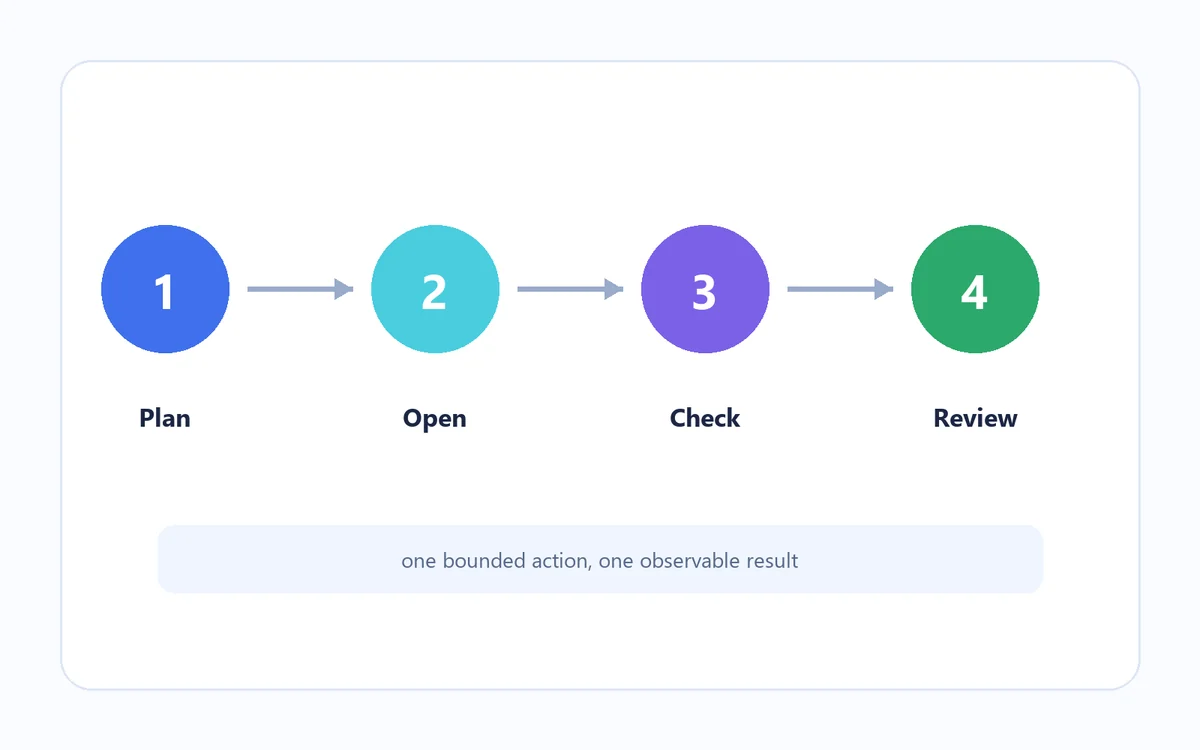
Plan the action path
A short action plan gives the agent a clear route and gives you checkpoints for unexpected redirects, pop-ups, or missing content. Start with one page and one output before expanding the task.
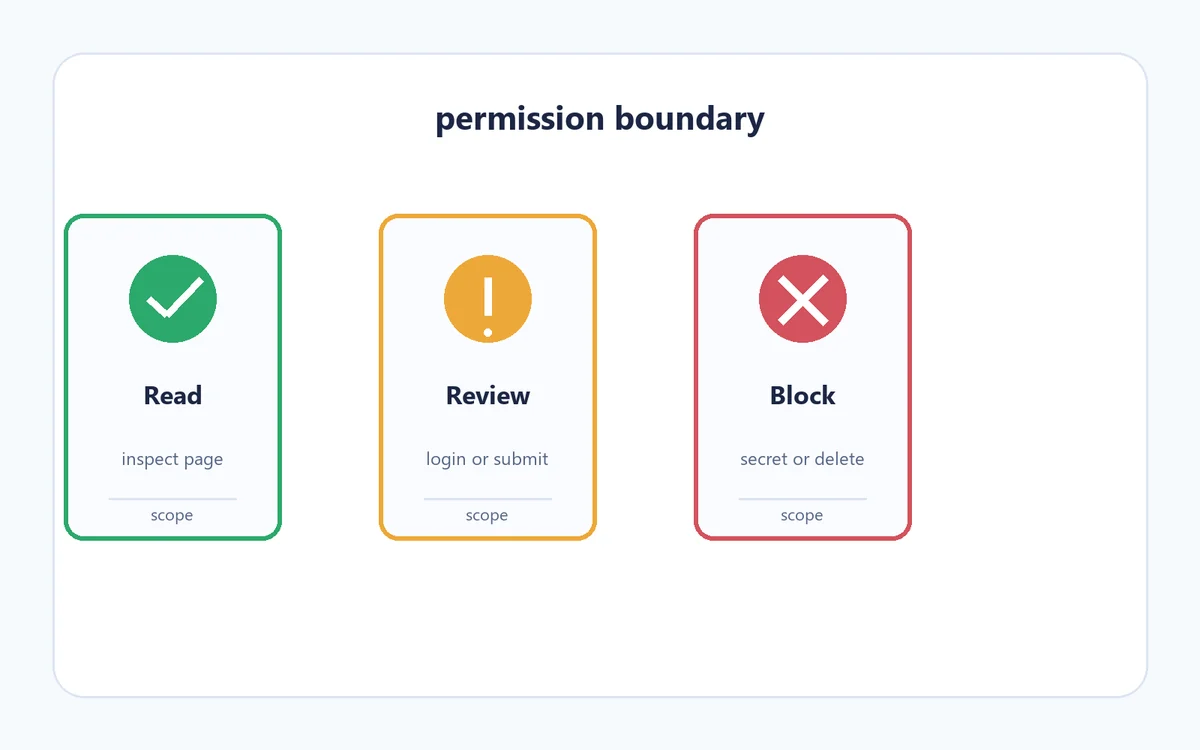
Make permission boundaries explicit
Write down which actions are allowed and which require a human decision. This is especially important for uploads, external messages, publishing, account changes, payments, and destructive buttons.
Keep final evidence separate
A successful click is not proof that the task succeeded. Confirm the resulting heading, status, URL, or record. Store only the minimum safe evidence and include the failed step when a later run needs diagnosis.
Antigravity Browser Not Working: Isolate the Failed Layer
When the browser does not open or the agent reports a failed browser action, do not immediately reinstall the IDE. First identify whether the failure is the local browser launch, the selected profile, the page itself, a permission boundary, or the agent's interpretation of the page. Repeat the smallest public read-only action in a clean test page. If that works, the original site or session is the likely difference.
Record the exact URL, visible error, last successful action, and whether the page was logged in. A timeout after a click is different from a browser process that never starts, and a blank result is different from a consent screen. The record prevents repeated guesses and helps separate a browser issue from a general Antigravity agent error.
The browser never opens
Try a known public URL in a fresh, minimal task. Check that the IDE and browser are allowed to launch, then inspect the local error record. Avoid adding random extensions until the base browser path works.
The wrong account or profile appears
Stop before entering data. Confirm the visible profile and account identity, close unrelated tabs, and use a dedicated test session. Do not ask the agent to guess which account is correct.
A click or form action times out
Check for consent dialogs, overlays, slow requests, disabled controls, and a changed layout. Retry one action with a clear stop condition; do not loop a submission or purchase button.
The result looks plausible but is wrong
Verify the final URL, heading, status, and key value against the task. Treat a stale tab, similar page, or partial result as a failed run and keep the evidence minimal.
Official and Internal Antigravity Browser Links
Use the official browser documentation for product behavior, then use the related site guides when the problem crosses into installation, permissions, or general agent troubleshooting.
- Official Antigravity browser documentation - Product reference for browser capability and current terminology.
- Antigravity not working guide - Broader checks for agent, login, PATH, model, and install failures.
- Antigravity extensions guide - Use when the question is about extensions rather than browser control itself.
- Antigravity system requirements - Check the local environment when launch or compatibility is the suspected layer.