What the Antigravity installation process includes
How to install Antigravity has two parts: selecting a package that matches your computer and completing first launch. The installer can finish successfully while the wrong workspace, account, or permission state still prevents useful work.
This guide joins the common Windows, macOS, and Linux path. Use the linked platform pages for package-specific requirements, because architecture and distribution choices change at the download step.
For a safe baseline, change one variable at a time. Install from the official source, open a small local project, and test reading before adding extensions, MCP servers, terminal access, or file writes.
Check your computer before downloading
Find the operating system and processor architecture in system settings before downloading. Common mistakes include Windows ARM64 versus x64, Intel versus Apple Silicon on Mac, and a Linux package that does not match the distribution.
Keep free space for the application, caches, and your first project. Agent inspection also needs memory and network headroom, so a machine that barely runs a browser may feel unreliable during a large repository task.
| Check | Minimum decision | Why it matters |
|---|---|---|
| Operating system | Use a supported Windows, macOS, or Linux desktop. | Installers and security prompts differ by platform. |
| Architecture | Match Windows x64/ARM64, Mac Intel/Apple Silicon, or Linux package. | A mismatch can stop launch or reduce compatibility. |
| Memory and storage | Reserve room for the app, caches, and workspace. | Agents and large projects need headroom. |
| Network and account | Use a stable connection and intended Google account. | Sign-in and model-backed features may require both. |

Choose the correct Antigravity installer
Open the official Google download page and choose the platform first. Search results, copied storage paths, and third-party mirrors are not reliable contracts because package names and release labels can change.
On a managed computer, check installation, sign-in, and network policy before blaming the package. Security prompts can differ from those on a personal machine.
| Platform | Choose | Next check |
|---|---|---|
| Windows | x64 for most Intel/AMD PCs; ARM64 for Windows on ARM. | Check Windows version and security policy. |
| macOS | Apple Silicon for M-series; Intel for older Macs. | Check Applications and macOS prompts. |
| Linux | Use the package or repository matching the distribution. | Follow current distribution instructions. |
| CLI | Install separately only for terminal or agy sessions. | Use the dedicated CLI documentation. |
The official page is the source of truth for package, release label, architecture, and file details. This article does not claim an unverified binary URL or size.
Install Antigravity step by step
Close older Antigravity windows before starting. Two builds can own different workspaces or make an old shortcut appear to be the new install. Keep project files separate from application folders.
Download the current package from Google, then compare its filename and architecture with your preflight notes. Let the browser finish before opening the file.
Run the normal installer, accept the expected platform security prompt, keep the default location unless policy requires another one, and wait for completion.
- 1. Close older copiesQuit Antigravity and previous installer windows; do not delete settings yet.
- 2. Open the official sourceConfirm the Google download or documentation page before downloading.
- 3. Match the architectureSelect Windows x64/ARM64, Mac Intel/Apple Silicon, or the right Linux route.
- 4. Run the installerFollow standard prompts and keep the normal location where possible.
- 5. Launch the new copyClose the installer and use the normal system entry to open the app.
- 6. Start smallOpen a small local project before testing a large or remote repository.
- Correct launcher — The shortcut or Applications entry opens the installed copy.
- Expected prompt — Security dialogs identify the expected application.
- Separate project — Source code remains in the intended workspace.
- Fresh session — A restart clears stale processes and PATH state.
Complete first launch and sign-in
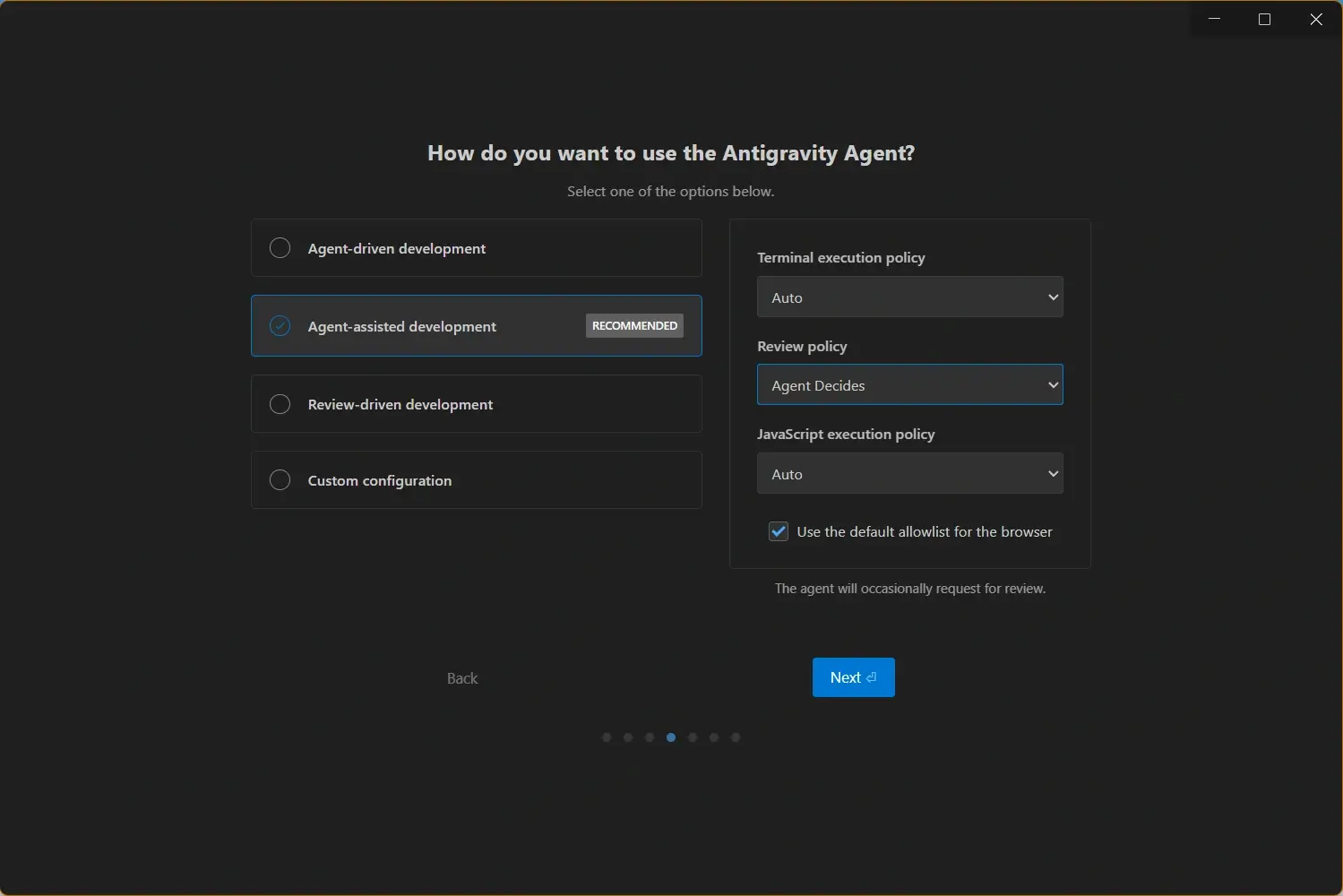
First launch may request authentication, terms, or onboarding choices. Use the account that should own the session. A sign-in loop is an account or browser-handoff problem, not a reason to reinstall repeatedly.
Open the smallest project that represents normal work. A small folder makes it easier to confirm file access, workspace root, and the expected editor surface.
Keep permissions conservative. Reading is enough for the first check; enable terminal, browser, network, MCP, or write access only for a defined task.

Use the right account
Choose the account with expected workspace and model access.
Review onboarding
Keep the first configuration close to the normal defaults.
Open a small workspace
Compare the visible tree with the folder you selected.
Delay broad permissions
Start with read-only inspection and add access deliberately.
Verify the workspace before real work
A useful first check confirms four things: the expected build launched, the editor sees the right files, the agent can understand the workspace without editing, and the version is visible.
Ask for a summary of top-level folders or the project language without changes. Compare the response with the project tree. If it describes a parent, empty, or different checkout, fix the workspace root first.
Record platform, architecture, version, workspace path, and any unusual network or security setting. This makes future updates easier to reproduce.

- Confirm the version — Use About or product information; do not infer it from a filename.
- Confirm files — Open a known file and compare the project tree.
- Run a read-only task — Request a summary or search without writes or destructive commands.
- Record the baseline — Save platform, architecture, version, path, and first symptom.
Fix common Antigravity installation problems
Separate failures by stage: launch, authentication, workspace, and permissions need different fixes.
The installer will not open
Recheck source, file completion, operating system, architecture, and the platform security prompt. On a managed device, ask whether policy blocks installation.
The app opens and closes
Use the installed location instead of an old shortcut, close duplicate copies, restart if a process is stuck, and check official requirements before deleting configuration.
Sign-in keeps returning
Check browser handoff, account, clock, network, and organization policy. Capture the exact message; reinstalling cannot repair a blocked login flow.
The folder is wrong or empty
Open the exact project directory and wait for indexing. Test a small local folder if the original is remote, mounted, excluded, or very large.
A shortcut opens an older copy
Compare the About version and active path, then repair only the stale shortcut. Treat old installers as archives and update from the official flow.
Check the version and update safely
This site's desktop record is v2.12.2, checked September 8, 2026. Confirm the live release label, package, and file details on Google's official page immediately before downloading.
Keep desktop, CLI, extensions, and MCP versions separate. Before an update, record the current behavior and repeat the same small read-only check after installation.
Antigravity installation FAQ
How to install Antigravity on Windows 10 or Windows 11?
Open Google's official download page, choose the Windows installer that matches x64 or ARM64, run it, and reopen Antigravity. Then open a small workspace and verify its files.
How do I install Antigravity on macOS?
Choose the macOS package, select Apple Silicon for an M-series Mac or Intel for an older Mac, place the app in Applications, approve the normal security prompt if needed, and sign in.
How do I install Antigravity on Linux?
Choose the package or repository route matching your distribution and architecture. Follow current official instructions, start a fresh desktop session, and test a small workspace.
Do I need Antigravity CLI to use the IDE?
No. CLI is a separate terminal surface. Install it only for agy commands or shell workflows, and use the dedicated CLI guide for its setup.
Why does Antigravity not show my project files?
Check the folder, account access, and indexing status. If the project is remote or very large, test a small local folder to separate workspace access from installation.
Can I install Antigravity without signing in?
The app may open before authentication, but agent and account-backed features can require sign-in. Use the intended account and never paste credentials into installers or shells.
What if the installer says the app is already installed?
Close Antigravity, locate the existing copy, and compare version and architecture. Use the official update flow; avoid deleting configuration until its location is known.
How do I know Antigravity installed correctly?
Check the About version, open a small project, compare visible files, run a read-only agent request, and enable broader permissions only when required.
Official sources to check
- Google Antigravity download page — Current package, platform choice, release label, and official download flow.
- Google Antigravity getting started documentation — Current first-launch and setup guidance.
- Google Antigravity CLI installation documentation — Separate terminal and CLI installation instructions.
- Google Antigravity getting-started codelab — Practical first-project workspace reference.