What “Antigravity keyboard shortcuts” can mean
Searches for Antigravity keyboard shortcuts mix several surfaces. A shortcut may open an editor view, focus the terminal, open the agent panel, or trigger an operating-system action. The CLI adds another layer: agy --help, /help, /diff, and /settings are typed commands, not key combinations.
Use the surface-first rule before changing anything. File navigation belongs to the editor keybinding system; agent sessions belong to the CLI reference and shell; chat focus belongs to the desktop IDE. This prevents editing JSON for the wrong surface and then assuming Antigravity ignored the change.
Antigravity keyboard shortcuts to verify first
The table below follows the current official CLI reference for the terminal user interface. It is separate from desktop editor shortcuts: the same physical key can mean something different when focus is in the IDE, integrated terminal, or standalone CLI. Profiles, keyboard layouts, remote sessions, and future releases can still change the result.
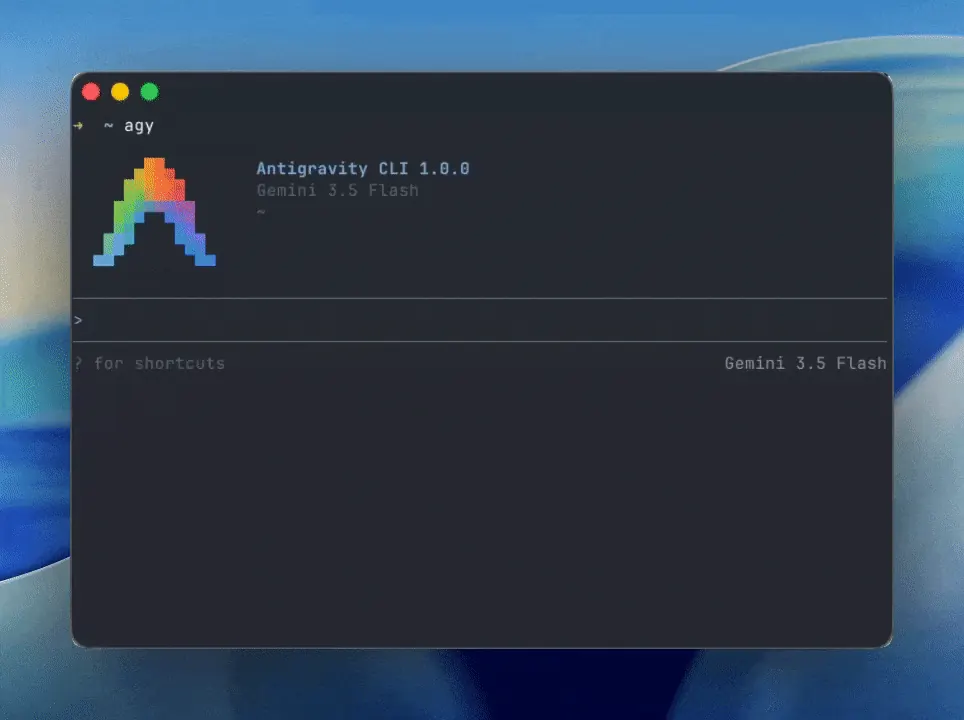
Use agy --version or agy --help in a shell to identify the installed command, then type /help inside an active session to open the built-in help panel. Use /keybindings for the shortcut editor and compare the action name and scope before editing JSON.
| Action | Windows/Linux | macOS | Scope and verification |
|---|---|---|---|
| Clear the CLI TUI screen | Ctrl+L | Ctrl+L | CLI default. In the desktop IDE, the same key may belong to another command. |
| Close a panel or stop a stream | Esc | Esc | Closes an active panel, halts a stream, or clears an empty prompt. |
| Exit the CLI TUI | Ctrl+C or Ctrl+D | Ctrl+C or Ctrl+D | Ctrl+C exits the session; Ctrl+D exits when the prompt is empty. |
| Insert a prompt newline | Shift+Enter or Ctrl+J | Shift+Enter or Ctrl+J | Adds a newline without submitting the prompt. |
| Paste text or media | Ctrl+V | Ctrl+V | Pastes clipboard blocks or graphic media into the prompt. |
| Open the artifact review panel | Ctrl+R | Ctrl+R | Opens the review panel for generated artifacts. |
| Edit the prompt externally | Ctrl+G | Ctrl+G | Launches the default $EDITOR shell for composing the prompt. |
| Move to the next subagent approval | Alt+J | Alt+J | Moves to the next waiting confirmation when subagents are active. |
| Approve a pending action | Ctrl+K | Ctrl+K | Fast-approves the pending subagent action shown in the status alert. |
| Submit a prompt or choice | Enter | Enter | Submits the current prompt or selection in the CLI TUI. |
| Show CLI help | agy --help | agy --help | Typed in a shell, not a keybinding; discovers the installed CLI. |
| Show session commands | /help | /help | Typed inside an active CLI session; the list may vary by build. |
How to find and test a shortcut safely
A shortcut failure is usually a context problem before it is a product bug. The editor may lack focus, the terminal may capture the key, or a workspace profile may use another binding. A short routine gives evidence without changing several settings.
Use a reversible test project when a shortcut can launch an agent, write files, execute a command, or open a network tool. Confirm the action and permission boundary separately, then record how to restore the binding.
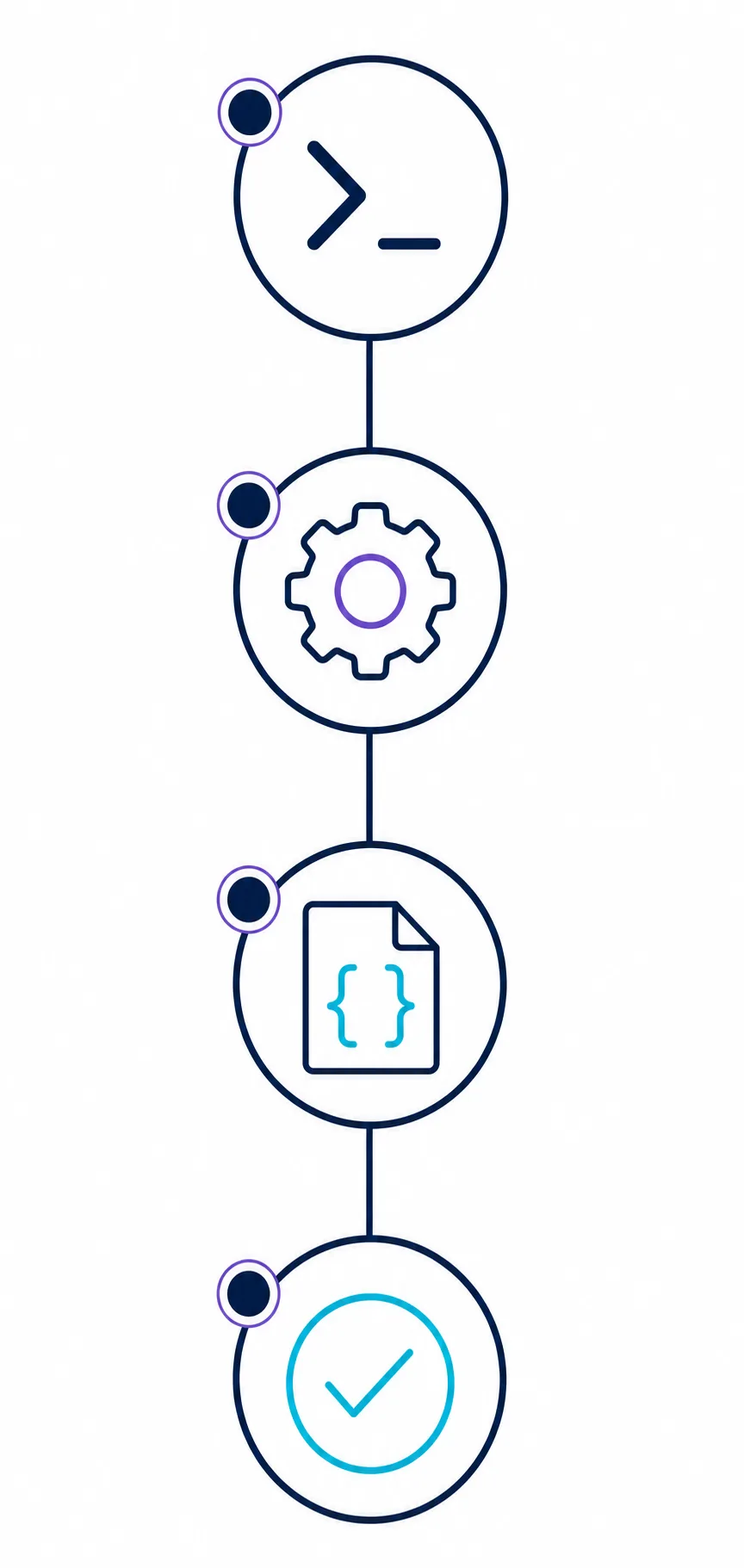
- 1. Name the surfaceDecide whether you are testing the editor, terminal, agent panel, or standalone CLI before editing a keybinding.
- 2. Search the current commandSearch for the action in the command palette and read its shortcut, conflicts, and source profile.
- 3. Test a harmless actionOpen a file, display help, or inspect status before trying an action that writes or executes.
- 4. Record the working stateNote the OS, keyboard layout, surface, product/CLI versions, workspace, and keybindings scope.
- Keep a fallback — Keep the command palette, sidebar, menu, and typed CLI help available as fallbacks.
- Change one binding — Do not import a full keybindings file for one missing command. Small changes are easier to reverse.
- Review agent permissions — A shortcut that starts an agent may lead to shell, file, browser, or network actions; keep review settings visible.
Customize Antigravity keybindings without losing control
Use /keybindings or the Keyboard Shortcuts editor to inspect the command, current key combination, and conflicts before editing JSON. A valid file can appear ineffective when it is in the wrong user, workspace, remote, or profile scope. Start in the UI and make the smallest change.
Keep keyboard customization separate from CLI settings. The keybindings file is ~/.gemini/antigravity-cli/keybindings.json, while ~/.gemini/antigravity-cli/settings.json controls CLI preferences and permissions. Back up both files and test an action that does not modify production code.
Command paletteFind the command first
Search by action name and note the identifier or displayed binding before changing it.
Workspace scopeUse for project-specific actions
Keep a binding local when it only makes sense for one repository and is reviewable.
Key conflictPrefer an unused chord
If another layer owns the combination, choose a clear alternative instead of stacking overrides.
CLI settingsDo not mix JSON scopes
Use /settings or /config and the official reference to identify the loaded .gemini file.
RollbackKeep the old binding nearby
Save the previous line or revision so one change can be removed without resetting preferences.
Antigravity shortcut troubleshooting
When a shortcut fails, test focus, scope, conflict, and product surface in that order. Reinstalling rarely fixes a key captured by another layer.
The shortcut does nothing
Click the editor or terminal, retry, then use the command palette. If the action works there, the issue is likely focus or a conflict.
The shortcut opens the wrong action
Search the command, inspect duplicate bindings, and change the competing extension rule. Test in a clean workspace before changing global settings.
The agent panel is missing
Use the sidebar or command palette and confirm you are in the desktop IDE. A standalone CLI session cannot open the IDE panel.
The CLI command is not found
Check the PATH used by the exact terminal and compare agy --version with official install instructions. Start a session before using /help or /keybindings.
A keybinding works locally but not remotely
Compare the remote profile, keyboard layout, editor context, and workspace scope. Remote sessions may load a different settings file.
A shortcut launches a risky action
Remove the binding, restore ask/review behavior for shell and file writes, and reproduce in a disposable project.
What to record when shortcuts change
Shortcut behavior is version-sensitive. Record the host surface and CLI separately because an IDE update can change commands without changing the shell binary.
This guide does not make a latest-version claim. Before reporting a regression, check the official reference and record the date, platform, layout, profile, workspace, and failed action. The installed build remains the final authority.
Explanatory media; verify bindings in the installed product.
Antigravity keyboard shortcuts FAQ
What is the shortcut for the Antigravity CLI screen?
In the CLI TUI, Ctrl+L clears the terminal screen. It is different from desktop IDE chat, where Ctrl+L may open the agent panel.
How do I see the current Antigravity keyboard shortcuts?
In the CLI, type /help and move to the shortcuts tab. In the desktop editor, search the command palette or open the Keyboard Shortcuts editor. Trust the installed profile over a copied cheat sheet.
What is the Antigravity CLI help command?
Run agy --help in a shell for the installed command. Inside an active interactive session, type /help to open the help panel; /keybindings opens the keyboard shortcut editor.
Are Antigravity CLI commands the same as keyboard shortcuts?
No. agy --help, agy --version, and /help are typed shell or session commands. CLI TUI keybindings and desktop editor shortcuts are separate.
How do I customize Antigravity CLI keybindings?
Type /keybindings or edit ~/.gemini/antigravity-cli/keybindings.json, change one mapping, and keep protected controls such as Enter and exit keys intact. Back up the file and test a harmless action first.
Why does an Antigravity shortcut not work?
Check focus, keyboard layout, extension conflicts, scope, and whether you are using the IDE or CLI. If it works from the palette, the issue is usually key capture.
Where are Antigravity CLI settings stored?
Use /config or /settings first, then inspect ~/.gemini/antigravity-cli/settings.json. Keyboard mappings live separately in ~/.gemini/antigravity-cli/keybindings.json. Valid JSON in the wrong directory appears to do nothing.
Should I import a complete keybindings file into Antigravity?
Usually not while troubleshooting. Change the smallest group you understand, check conflicts, and keep a rollback copy. A full file can include bindings for missing extensions.
Official sources checked
- Antigravity CLI documentation — Current product surface and CLI workflow context.
- Antigravity CLI reference — Use the installed build's command and keybinding reference as the final authority.
- Antigravity CLI commands — Shell flags and interactive command behavior.
- Antigravity CLI settings — Settings scope, configuration, and permission boundaries.
- Antigravity CLI repository — First-party repository context and public CLI examples.